
Patch Management
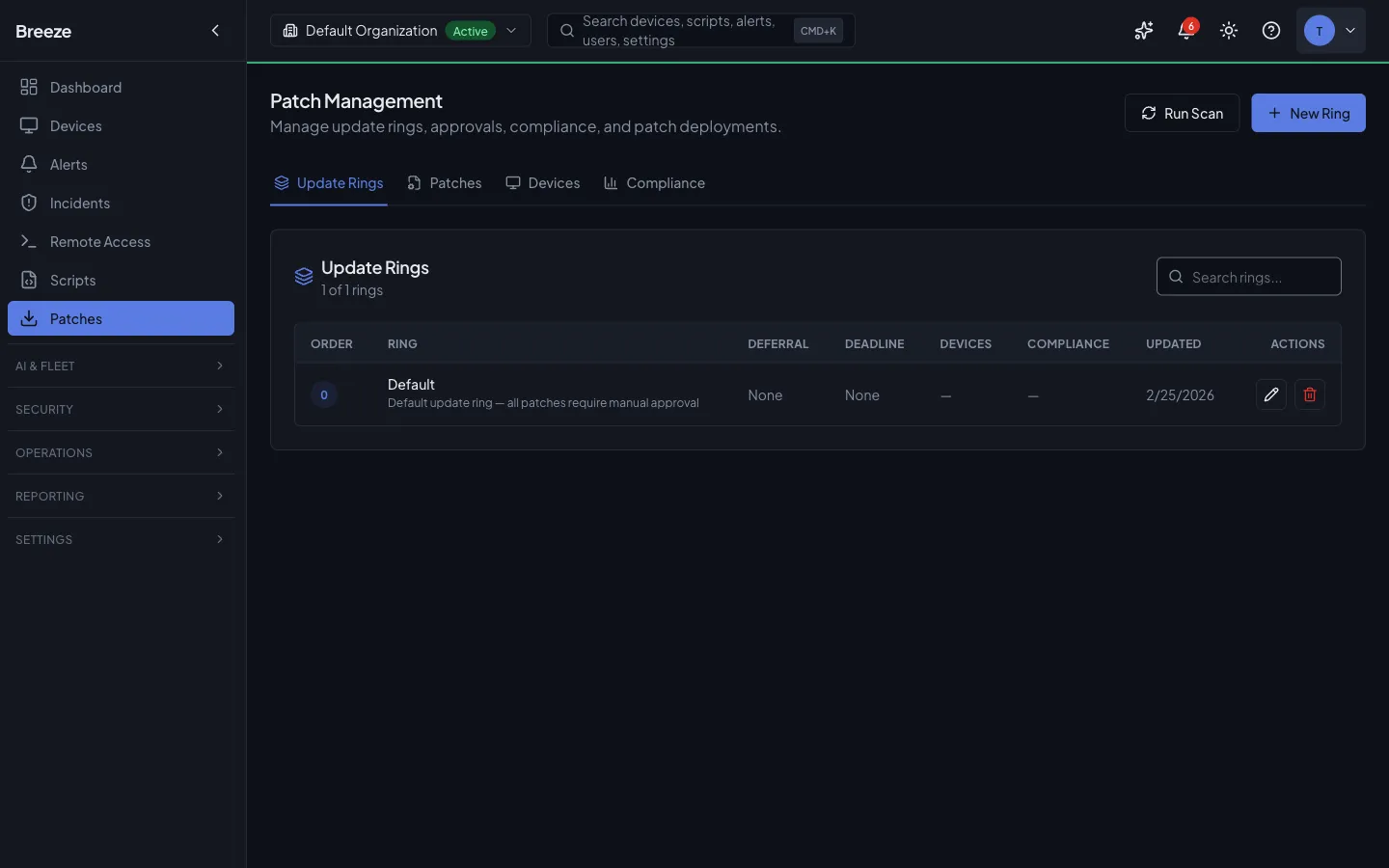
Patch Management gives you full control over the complete update lifecycle for every device in your fleet: discover available patches, review and approve them, deploy to targets, and roll back if something goes wrong. The system is designed to make large-scale patching auditable and safe — every action is recorded, partial failures are surfaced immediately, and no patch reaches a device without an explicit approval step.
Every patch goes through an approval workflow before it can be deployed. Approvals are managed at the partner (MSP) level: a patch you approve, decline, or defer applies across all the organizations you manage, so you set each patch’s posture once instead of repeating the decision per customer. Approvals can optionally be tied to a specific update ring, in which case they apply only to the devices that ring covers; a ring-less approval is a partner-wide blanket decision. Only partner-level and system administrators can approve patches — organization-scoped users cannot.
Compliance reports give you a point-in-time snapshot of your fleet’s patch status, suitable for internal audit reviews and customer-facing reporting. Reports are generated asynchronously and can be exported as CSV or PDF.
Key Concepts
Section titled “Key Concepts”Patch Sources
Section titled “Patch Sources”| Source | Description |
|---|---|
microsoft |
Windows Update patches sourced from Microsoft, including cumulative updates, security fixes, and optional feature updates |
apple |
macOS and iOS system updates distributed through Apple Software Update |
linux |
Distribution packages managed via the native package manager (apt, yum, dnf, zypper, etc.) |
third_party |
Updates for non-OS applications (browsers, runtimes, productivity tools) detected via winget and Chocolatey on Windows devices, and Homebrew on macOS devices. Enriched with vendor metadata and CVE data through the Third-Party Package Catalog |
custom |
Internally published updates distributed through Breeze’s custom patch channel |
Severity Levels
Section titled “Severity Levels”| Severity | Meaning |
|---|---|
critical |
Security-critical vulnerability; immediate patching strongly recommended |
important |
High-priority fix addressing a significant security or stability issue |
moderate |
Standard update improving security or reliability without urgent exposure |
low |
Minor improvement or non-security fix with minimal operational impact |
unknown |
Severity not yet classified by the patch source |
A patch whose source published no severity is shown as a muted Unrated badge with the note “Will not auto-approve”. Breeze never guesses a rating for it: an unrated patch is not treated as Low, and it is excluded from auto-approval — even when every severity box is ticked — unless the update ring explicitly opts in. See Update Rings. Third-party application patches are a separate path and are unaffected by that opt-in.
Approval States
Section titled “Approval States”| State | Meaning |
|---|---|
pending |
Not yet reviewed; patch will not be deployed until approved |
approved |
Cleared for deployment; eligible for inclusion in patch jobs |
rejected |
Explicitly declined via POST /patches/:id/decline — will not be installed. Non-destructive; can be reversed by approving the patch at any time. |
deferred |
Postponed until the deferUntil date; returns to pending automatically when that date is reached |
Device Patch Status
Section titled “Device Patch Status”| Status | Meaning |
|---|---|
pending |
Patch detected on the device but not yet installed |
installed |
Patch successfully applied |
failed |
Installation attempted but returned an error |
skipped |
Patch was not applied during a job run (e.g., device was rebooting or a dependency was missing) |
missing |
Patch is approved and should be present but is not detected on the device |
Third-Party Application Patching
Section titled “Third-Party Application Patching”Beyond operating-system updates, Breeze patches third-party applications — browsers, runtimes, and productivity tools such as Chrome, Firefox, Edge, Zoom, Teams, Git, Node.js, Python, and Visual Studio Code. Detection uses winget and Chocolatey on Windows devices and Homebrew on macOS devices. These patches flow through the same approval, deployment, and rollback workflow as OS patches. On macOS, the Homebrew engine upgrades formulae and casks and runs brew cleanup --prune=all after a batch of upgrades to prune outdated kegs and cached downloads instead of leaving that to Homebrew’s own periodic cleanup.
How Windows Third-Party Patching Runs (winget)
Section titled “How Windows Third-Party Patching Runs (winget)”The detail below documents the winget execution path specifically. Chocolatey (Windows) and Homebrew (macOS) are separate providers under the same third_party source; both are agent-driven, but their exact scope and privilege model are provider-specific and not detailed on this page.
The Breeze agent runs winget directly, in the agent’s own SYSTEM process, against machine scope — there is no dependency on a user being logged in, and no separate helper process in the loop. Scanning, installing, and uninstalling third-party patches all happen the same way regardless of whether anyone is signed in to the device, consistent with how OS patches are already applied.
Scope is machine-wide installs only. Per-user (per-profile) winget installs are not scanned or patched by this engine.
This is purely an agent execution-path change: approval rings, patch policies, and compliance reporting are unaffected, and third-party patches continue to flow through the same third_party source described below.
The Package Catalog
Section titled “The Package Catalog”A curated package catalog standardises metadata for known third-party applications. It ships pre-seeded with around 20 common applications, and platform admins manage it at Admin → Third-Party Catalog.
Each catalog entry pairs a winget package ID with a vendor, friendly name, category, and a default severity. When a device reports an available third-party update, Breeze matches it to the catalog so the patch shows the correct vendor and a sensible severity even before any vulnerability data is available. Updates from applications not in the catalog still appear in the patches list, but without this enrichment.
To add or edit an entry:
-
Go to Admin → Third-Party Catalog.
-
Click Add package, or the edit icon on an existing row.
-
Set the winget package ID, vendor, friendly name, and default severity. Optionally add a homepage link, notes, and — to enable CVE lookups — an OSV ecosystem name (see below).
-
Save. The catalog updates immediately and future third-party patches from that vendor are enriched.
Deleting an entry removes future enrichment for that vendor but does not delete patches that were already detected.
CVE Enrichment from OSV.dev
Section titled “CVE Enrichment from OSV.dev”Breeze automatically enriches third-party patches with vulnerability data from OSV.dev, a free public vulnerability database. For any catalog entry that has an OSV ecosystem configured, a background job queries OSV roughly once a day, attaches the matching CVE identifiers to the patch, and raises the patch’s severity if OSV reports a higher rating than the catalog default.
In the Patches list, patches with known vulnerabilities show red CVE chips beneath the patch title (the first few CVEs, with a “+N more” indicator). Each chip links to the corresponding entry in the NIST National Vulnerability Database. Source filter chips at the top of the list let you narrow to Microsoft, Apple, Linux, or third-party patches and show the count for each.
Smoke Testing Releases (Optional)
Section titled “Smoke Testing Releases (Optional)”Breeze can optionally run an AI-assisted smoke test on a third-party release before you roll it out widely. The test installs the release via winget on a dedicated Windows test VM and uses an AI model to judge whether the upgrade succeeded from the command output.
Smoke testing is off by default and only runs when the platform operator has configured a test VM. When enabled for a catalog entry (the Breeze-tested option), a re-test can be triggered manually:
-
Go to Admin → Third-Party Catalog.
-
On a Breeze-tested entry, click the re-test action and enter the version to test.
-
The result — pass, fail, inconclusive, or skipped (when no test VM is configured) — appears in the entry’s Last test column within a few minutes.
A smoke test verifies installation only; it is not a substitute for validating the release in your own environment.
Scanning for Patches
Section titled “Scanning for Patches”Trigger an on-demand patch scan by posting to /patches/scan with a list of device IDs. The source field is optional — omit it to scan all sources.
POST /patches/scan{ "deviceIds": ["uuid-1", "uuid-2"], "source": "microsoft"}The response includes:
deviceCount— number of accessible devices queuedqueuedCommandIds— all successfully queued command IDsdispatchedCommandIds— subset dispatched via active WebSocket connectionspendingCommandIds— subset queued but not yet dispatched (device offline); delivered automatically on the device’s next successful heartbeat, up to a 7-day deadline, and cancellable from the device’s Queued actions listfailedDeviceIds— devices that could not be queuedskipped.missingDeviceIds— device IDs not foundskipped.inaccessibleDeviceIds— devices outside org access scope
Scanning is asynchronous. The scan command is sent to the agent on each target device, which then reports its results back to the API. New patches appear in GET /patches after the devices have processed and returned their results — this typically takes a few minutes depending on fleet size and network conditions.
Reviewing and Approving Patches
Section titled “Reviewing and Approving Patches”All approval endpoints below are partner-scoped (partner or system scope, plus MFA). The partner is resolved from your login; system administrators may pass an optional partnerId (in the body or as ?partnerId=). An optional ringId field (UUID) ties the approval to a specific update ring; omit it for a partner-wide approval and the response returns ringId: null. No orgId is required or accepted — a single decision spans every organization you manage.
Approving
Section titled “Approving”POST /patches/:id/approve{ "ringId": "ring-uuid", "note": "Reviewed — approved for production fleet"}Rejecting
Section titled “Rejecting”POST /patches/:id/decline{ "note": "Known conflict with legacy app"}Rejection creates an audit record but is not a permanent block. The stored approval status is rejected. A rejected patch can be approved at any time by calling the approve endpoint. No data is deleted when a patch is rejected.
Deferring
Section titled “Deferring”POST /patches/:id/defer{ "deferUntil": "2026-03-01T00:00:00Z", "note": "Wait for Q1 change window"}A deferred patch returns to pending status automatically when the deferUntil date is reached. No manual action is required to reactivate it.
Bulk Approval
Section titled “Bulk Approval”POST /patches/bulk-approve{ "patchIds": ["uuid-1", "uuid-2"], "ringId": "ring-uuid", "note": "March cycle approval"}The response contains two arrays:
{ "approved": [...], "failed": [...] }Partial success is possible. Patches that could not be approved (e.g., already in a terminal state for this org) are returned in failed with a reason. Successfully approved patches are returned in approved.
Deploying Patches
Section titled “Deploying Patches”Patch Jobs
Section titled “Patch Jobs”A patch job is the unit of work that delivers approved patches to a set of devices. Jobs can be created automatically from a Configuration Policy patch schedule or manually via the UI or API. Each job targets a specific set of devices; when a job runs, the platform sends an install_patches command to each target device via its active WebSocket connection.
Offline devices
Section titled “Offline devices”By default (offlineBehavior: queue on the policy’s Patch settings), an offline device isn’t dropped from the job: the install command is queued and delivered automatically the next time the device successfully checks in, up to a 7-day delivery deadline. The job stays open while it waits — it doesn’t fail or time out just because a device hasn’t reconnected yet. Set offlineBehavior: skip instead to leave offline devices out of the job rather than waiting for them.
A still-queued install is superseded — not stacked — by the next scheduled occurrence of the same patch policy: if the schedule fires again before an offline device ever came back to receive the earlier install, that stale install is cancelled and the newer one takes its place, so a device that was offline for a while doesn’t suddenly receive a backlog of outdated install attempts when it reconnects.
You can see and cancel a still-waiting install from the device’s own page (Queued actions), or from the job’s device list.
Scheduled patch jobs are reliable across restarts. If a job’s scheduled run is ever lost before it reaches the queue — for example during a service restart — Breeze automatically detects the stranded job after its scheduled time and re-runs it, so no scheduled patch cycle is silently skipped.
Monitoring Jobs
Section titled “Monitoring Jobs”GET /patches/jobs?status=runningEach job record includes the following progress fields:
| Field | Description |
|---|---|
devicesTotal |
Total number of target devices in the job |
devicesCompleted |
Devices that have finished (success or failure) |
devicesFailed |
Devices that reported a patch installation failure |
devicesPending |
Devices that have not yet received or responded to the command |
Job status follows this lifecycle:
scheduled → running → completed / failed / cancelledRollback
Section titled “Rollback”To roll back an installed patch, post to the rollback endpoint:
POST /patches/:id/rollback{ "reason": "Causing boot failures on Intel systems", "scheduleType": "immediate", "deviceIds": ["uuid-1"]}The response includes:
queuedCommandIds— list ofrollback_patchescommands dispatched to target devicesdeviceCount— number of devices targetedfailedDeviceIds— devices that could not be reached or queued
Rollback status follows this lifecycle:
pending → running → completed / failed / cancelledCompliance Reporting
Section titled “Compliance Reporting”Generating a Report
Section titled “Generating a Report”Compliance reports are generated asynchronously. Call the report endpoint with your desired filters — the response is immediate and contains a reportId to track progress:
GET /patches/compliance/report?orgId=uuid&source=microsoft&severity=critical&format=csvResponse:
{ "reportId": "uuid", "status": "pending" }The initial status is pending. Note: the creation response may show queued as a display hint, but polling via GET /patches/compliance/report/:id will return pending until the worker picks up the job.
Available query parameters: orgId, source, severity, format (csv only — PDF is not yet supported).
Checking Report Status
Section titled “Checking Report Status”Poll the status endpoint using the reportId returned above:
GET /patches/compliance/report/:idResponse fields:
| Field | Description |
|---|---|
status |
Current state: pending, running, completed, or failed |
rowCount |
Number of rows in the report (available once completed) |
summary |
High-level counts by status (available once completed) |
startedAt |
ISO 8601 timestamp when processing began |
completedAt |
ISO 8601 timestamp when processing finished |
errorMessage |
Populated only if status is failed |
Downloading the Report
Section titled “Downloading the Report”Once the report status is completed, download the file:
GET /patches/compliance/report/:id/downloadThis returns a file stream in CSV format. Attempting to download before the report is completed will return an error.
Real-Time Compliance Summary
Section titled “Real-Time Compliance Summary”For a live overview without generating a file, use the compliance summary endpoint:
GET /patches/complianceThis returns compliancePercent (a value from 0 to 100) and aggregated counts broken down by device patch status. Results are computed in real time from the current state of the fleet and are not cached.
The response also carries an unratedSummary breakdown (total, patched, pending) so you can see how much of the backlog carries no severity rating. The dashboard’s patch compliance card surfaces the same number as “N unrated patches pending (won’t auto-approve)” — a prompt to review them by hand, because nothing will approve them for you unless a ring opts in.
Outstanding patches are split into Approved and Pending Approval: approved patches have cleared the approval workflow and are eligible for installation, while pending-approval patches are detected but not yet reviewed. A bulk install acts on the approved patches only — pending-approval patches are never deployed until they are reviewed and approved, so compliance reporting and deployment stay aligned with your approval posture. When patch settings come from a policy with update rings, approval is driven automatically by the ring each device belongs to.
Patch Scheduling via Configuration Policies
Section titled “Patch Scheduling via Configuration Policies”Patch scheduling and settings — when to scan, which severities to auto-approve, and what reboot policy to apply — are managed through Configuration Policies. This is the primary way to automate patching at scale. The legacy PATCH /patch-policies and DELETE /patch-policies routes have been removed; GET /patch-policies remains for backwards compatibility only.
A patch feature can be added to a partner-wide (all organizations) configuration policy, including linking an update ring directly to it — you set the schedule, auto-approve rules, and ring once and it schedules across every organization you manage. Deployment jobs created from a partner-wide policy are still grouped and tracked one-per-organization, so per-customer compliance reporting is unaffected.
Adding a patch feature to a policy
Section titled “Adding a patch feature to a policy”POST /configuration-policies/:policyId/featuresContent-Type: application/json
{ "featureType": "patch", "inlineSettings": { "sources": ["os", "third_party"], "autoApprove": true, "autoApproveSeverities": ["critical", "important"], "autoApproveDeferralDays": 7, "apps": [ { "source": "third_party", "packageId": "Mozilla.Firefox", "action": "block" }, { "source": "third_party", "packageId": "Google.Chrome", "action": "pin", "pinnedVersion": "120.0.1" } ], "scheduleFrequency": "weekly", "scheduleTime": "02:00", "scheduleDayOfWeek": "sun", "rebootPolicy": "if_required" }}Patch settings fields
Section titled “Patch settings fields”| Field | Type | Description |
|---|---|---|
sources |
string[] | Which patch sources this policy covers — at least one is required. See Patch Sources below |
autoApprove |
boolean | Automatically approve patches matching the configured severities |
autoApproveSeverities |
string[] | Severities eligible for auto-approval: critical, important, moderate, low. An empty list means nothing is auto-approved |
autoApproveDeferralDays |
integer | A deferral window (0–60 days) applied before an auto-approved patch is released. A patch is held this many days after it becomes available, giving newly published updates time to soak before they reach devices. 0 approves immediately |
apps |
object[] | Per-application block and pin rules. See Application Rules below |
scheduleFrequency |
string | How often to run patching: daily, weekly, or monthly |
scheduleTime |
string | Time of day in HH:MM format (24-hour, UTC unless timezone configured at site level) |
scheduleDayOfWeek |
string | For weekly schedules: mon, tue, wed, thu, fri, sat, sun |
scheduleDayOfMonth |
integer | For monthly schedules: day 1–28 |
rebootPolicy |
string | Post-patch reboot behavior: never, if_required, always, or maintenance_window |
rebootDelayMinutes |
integer | How long the logged-in user is warned before a post-patch reboot fires (1–1440 minutes). Default: 15 |
rebootAllowDeferral |
boolean | Let the signed-in user postpone a Breeze-scheduled restart. Default: false — with it off, the reboot behaves exactly as it always has (warn, then restart). There is no switch to suppress the warning itself; at least one warning always fires. Supported on Windows, macOS and Linux; on Linux the dialog is drawn by the agent itself and needs zenity installed plus a signed-in graphical session (see What the end user sees) |
rebootMaxDeferrals |
integer | How many times one user may postpone a single restart before it proceeds (0–10). Must be at least 1 when rebootAllowDeferral is on. Default: 3 |
rebootDeferralMinutes |
integer | How far each postponement pushes the restart out (5–1440 minutes). Default: 60. rebootDelayMinutes + rebootMaxDeferrals × rebootDeferralMinutes may not exceed 10080 (7 days) — that sum is the hard deadline the restart is measured against, and the agent refuses a restart scheduled further out than that |
exclusiveWindowsUpdate |
boolean | Manage Windows Update exclusively through Breeze. When enabled, Breeze disables the device’s native Windows Update automatic-install channel, so updates on that device only arrive through Breeze’s approval rings and schedule — no unexpected OS-initiated installs or reboots outside your policy. Turning it back off restores Windows’ native update behavior. Windows-only — has no effect on macOS or Linux devices. Default: false |
offlineBehavior |
string | What happens when a patch job targets a device that’s offline: queue (default) holds the install and delivers it the moment the device reconnects, up to a 7-day deadline; skip leaves the device out of the job entirely rather than waiting for it. See Offline devices below. |
Patch settings inherit through the hierarchy. A device with a more specific policy override uses those settings rather than the parent policy’s settings. Use GET /configuration-policies/:id/resolve-patch-config/:deviceId to see the effective resolved config for a specific device.
When a device is assigned to an update ring, the ring’s approval rules take precedence over the policy-level auto-approve settings — the ring decides which severities and categories are approved (and after what deferral) for the devices it covers.
End-user restart prompts
Section titled “End-user restart prompts”When rebootAllowDeferral is on and a restart is scheduled while someone is signed in at a desktop, the early warnings appear as a native modal dialog instead of a passive toast: a system message box on Windows, a standard dialog on macOS, and a zenity dialog on Linux. The dialog offers two buttons, Restart now and Postpone N minutes/hours (the postpone label reflects rebootDeferralMinutes), and states how many postponements remain, e.g. “You can postpone this restart 2 more times.”
- Postpone pushes the restart out by the configured window (
rebootDeferralMinutes), measured from the restart’s currently scheduled time — not from the moment the user clicks — and is only available while postponements remain in the budget (rebootMaxDeferrals). Using up the full postponement budget lands the restart exactly on the deadline; it can never be pushed past it. - Restart now doesn’t restart the machine instantly — it collapses the countdown to the shortest schedule Breeze allows, still showing the final “save your work” notice and still giving the OS a grace period before the session ends.
- Doing nothing — closing the dialog or letting its countdown run out — changes nothing. The restart proceeds exactly as scheduled; silence never postpones and never accelerates it.
The deadline is an absolute cutoff, not a second budget: once it passes, the restart proceeds regardless of how much postponement budget is left. Once the postponement budget is spent, or the deadline no longer leaves room to defer, no further dialog is shown: the remaining warnings go back to being plain notifications, and they say “This restart can no longer be postponed.” The final warning, fired as the OS-owned countdown begins, never offers a postponement either — by that point the countdown belongs to the operating system, not Breeze.
If nobody is signed in or the desktop prompt can’t be delivered — a server sitting at the logon screen, a headless machine — there’s no dialog. The restart proceeds on schedule and the existing warnings are unaffected; this is expected behavior, not a failure, and there’s no setting to change it.
On Linux
Section titled “On Linux”Breeze ships no desktop helper for Linux, so the agent draws the restart dialog itself. It asks systemd-logind which graphical sessions are signed in and runs zenity as that user, inside that user’s session — never as root. What that means in practice:
zenitymust be installed. It ships with most GNOME and XFCE desktops; on a minimal install you may needapt install zenity/dnf install zenity. Without it the user still gets a desktop notification throughnotify-send— they are warned, they just can’t postpone from it.- Only local graphical sessions get the dialog. X11 and Wayland sessions belonging to a signed-in user qualify. SSH and other remote sessions, text consoles, the display manager’s own greeter, and sessions being torn down are all skipped — there is no local screen to draw on.
- Multiple signed-in users each get the dialog, and the first answer decides for the machine; the other dialogs close by themselves.
- A headless Linux box behaves exactly as before. No dialog, no error: the
shutdown -r +Nwall message that terminal sessions already receive remains the warning, and the restart happens on schedule. - If the dialog can’t reach the screen — a stale X cookie, a compositor restarting — Breeze falls back to a desktop notification rather than assuming the user saw something. The worst case is a duplicate warning, never a silent restart.
Note that this covers restarts that Breeze schedules — post-patch restarts. A restart triggered by a maintenance window’s Reboot if a reboot is pending setting is issued directly on Linux and is not postponable; it warns through wall only.
What a technician sees. The device page shows a Restart scheduled badge (or Restarting, once the scheduled time has passed) whenever a restart is booked; hovering it shows what requested the restart — a patch installation, a maintenance window, or a technician — along with the scheduled time and deadline. When the resolved deferral budget for that restart is greater than zero, a second badge shows Postponed N of M, present from the moment the restart is scheduled (starting at Postponed 0 of M) rather than only after the first postponement; a restart with deferral off instead shows a Cannot be postponed badge. Neither deferral badge appears for a device running an agent built before this reporting existed, since that agent never sends a deferral budget at all.
The settings that control all of this — rebootAllowDeferral, rebootMaxDeferrals, rebootDeferralMinutes — live on the Patch feature of a Configuration Policy (see Patch settings fields above) and default to off.
Patch Sources
Section titled “Patch Sources”Each patch policy must declare which patch sources it manages, and at least one is required. This separates operating-system updates from third-party application updates so you can, for example, auto-approve OS security fixes while reviewing application updates manually.
| Source | Covers |
|---|---|
os |
Operating-system updates (Windows Update, Apple Software Update, and Linux distribution packages) |
third_party |
Non-OS application updates detected via the third-party package catalog |
custom |
Internally published updates distributed through Breeze’s custom patch channel |
firmware |
Firmware updates |
drivers |
Device driver updates |
Application Rules
Section titled “Application Rules”Application rules give you per-app control over third-party and custom updates within a policy. Each rule targets a specific package and chooses one of two actions:
| Field | Type | Description |
|---|---|---|
source |
string | third_party or custom |
packageId |
string | The catalog package identifier the rule applies to (e.g., Mozilla.Firefox) |
action |
string | block to prevent the application from being updated, or pin to hold it at a specific version |
pinnedVersion |
string | Required when action is pin — the version the application is held at. Updates beyond this version are withheld until the pin is changed |
A block rule keeps the application off the approved/installable list entirely. A pin rule allows the application up to the pinned version but holds back anything newer, which is useful when a vendor’s latest release is known to break a line-of-business workflow. A policy can carry up to 200 application rules.
Creating a patch deployment job from a policy
Section titled “Creating a patch deployment job from a policy”Once a policy has patch settings configured, deploy patches to a set of devices:
POST /configuration-policies/:id/patch-jobContent-Type: application/json
{ "deviceIds": ["uuid-1", "uuid-2", "uuid-3"], "name": "March Critical Patches — Contoso HQ", "scheduledAt": "2026-03-01T02:00:00Z"}deviceIds— required; up to 500 per jobname— optional; defaults to"Config Policy Patch Job — {policy name}"scheduledAt— optional ISO 8601 datetime; defaults to immediately
Devices currently inside an active Maintenance Window with patching suppression enabled are excluded and returned in skipped.maintenanceSuppressedDeviceIds. Devices that don’t exist or are outside your org scope are returned in skipped.missingDeviceIds and skipped.inaccessibleDeviceIds.
The response includes the IDs of all created jobs, total device counts, and skipped device lists.
API Reference
Section titled “API Reference”| Method | Path | Description |
|---|---|---|
| GET | /patches |
List patches with approval status (?source=&severity=&os=&orgId=) |
| GET | /patches/sources |
List available patch sources (?os=) |
| GET | /patches/:id |
Get full patch details |
| POST | /patches/scan |
Trigger patch scan on devices |
| GET | /patches/approvals |
List approval records (?status=&patchId=&orgId=) |
| POST | /patches/:id/approve |
Approve patch |
| POST | /patches/:id/decline |
Reject patch |
| POST | /patches/:id/defer |
Defer patch to date |
| POST | /patches/bulk-approve |
Approve multiple patches |
| GET | /patches/jobs |
List patch deployment jobs (?status=) |
| POST | /patches/:id/rollback |
Roll back installed patch |
| GET | /patches/compliance |
Real-time compliance summary |
| GET | /patches/compliance/report |
Request compliance report (async) |
| GET | /patches/compliance/report/:id |
Check report status |
| GET | /patches/compliance/report/:id/download |
Download completed report |
| GET | /third-party-catalog |
List catalog entries (?vendor=&breezeTested=&search=) — platform admin |
| POST | /third-party-catalog |
Create a catalog entry — platform admin |
| GET | /third-party-catalog/:id |
Get a catalog entry — platform admin |
| PATCH | /third-party-catalog/:id |
Update a catalog entry — platform admin |
| DELETE | /third-party-catalog/:id |
Delete a catalog entry — platform admin |
| POST | /third-party-catalog/:id/test |
Queue a smoke test for a Breeze-tested entry (body { "version": "..." }) — platform admin |
The GET /patches response includes source (microsoft, apple, linux, third_party, custom), releaseDate (the date the patch was published by its source, when available), and for third-party patches also version, vendor, and a cveIds array populated by OSV enrichment. Filter to a single source with ?source=third_party.
Troubleshooting
Section titled “Troubleshooting”Scan results not appearing. Scanning is asynchronous — allow a few minutes for devices to report back. If the device was offline when the scan was dispatched, it’s queued and runs automatically on the device’s next successful heartbeat (up to a 7-day deadline); cancellable from the device’s Queued actions list in the meantime.
Patch approved but not deploying. Approval does not automatically trigger a deployment. Once a patch is approved, it becomes eligible for installation, but a patch job must still be scheduled — either via a Configuration Policy schedule or by creating a job manually through the UI or API.
Rollback failed.
The patch’s uninstallCommand returned a non-zero exit code on the target device. Check the errorMessage field on the rollback record for the specific error output. Note that some patches, particularly certain cumulative OS updates, do not support programmatic uninstall and cannot be rolled back through this mechanism.
Compliance percentage lower than expected.
Check for devices with failed or missing patch status — these reduce the compliance score. Also verify that the relevant patches are in approved state at the partner level (optionally for the relevant update ring). Unapproved patches are not deployed and show as pending, which counts against compliance.
Compliance report stuck in running.
Check the background queue worker status in your infrastructure. The compliance report worker is a separate worker process from the main API worker. If that worker is down or backlogged, reports will remain in running or pending indefinitely. Restarting the compliance worker will resume processing.
Third-party patches disappeared after an OS-only scan.
A full scan only clears out (marks missing) patches from the sources it actually scanned. If a scan ran without a particular provider — for example, a Windows device where winget was unavailable, so no third-party source was scanned — that source’s previously detected patches are preserved rather than being wrongly removed. Re-run a scan that includes the missing source to refresh those patches.